


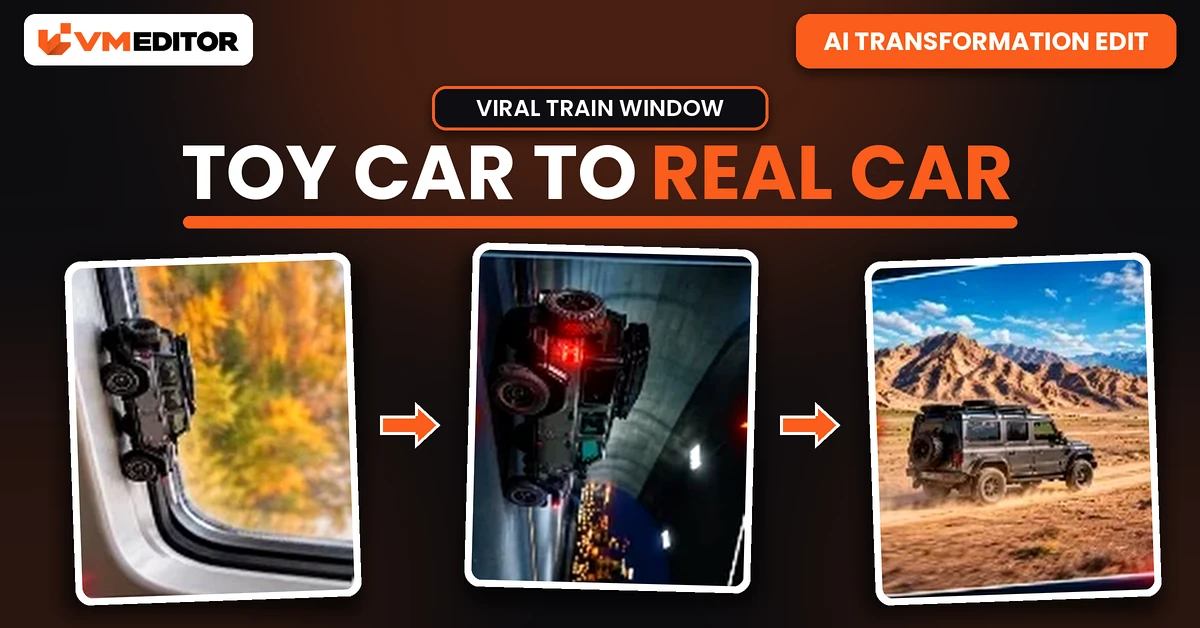
A Toy Car on a Train Window Just Became the Most-Recreated Reel on Instagram
You have seen this one. A miniature car sits on the window ledge of a moving train, scenery sliding past outside. The train rolls into a tunnel, the screen goes dark — and the same car drives out the other side full-size, on a night highway, looking like a car commercial. Millions of views, and people are remaking it with every car they dream about: Thar, Defender, G-Wagon, or the car actually parked outside their house.
The whole video is AI, it costs nothing, and it is built from two prompts, not one. Part 1 creates the train window video. You screenshot its final frame, and Part 2 continues from that frame and performs the transformation. Both prompts are below, with the exact workflow.
Why This Edit Hooks People So Hard
The first two seconds do the work. A toy car riding a train window is odd enough to stop the scroll, and every viewer immediately understands what they are waiting for: is it actually going to transform? The tunnel is the trick that sells it — the darkness covers the switch, so the miniature and the real car never have to morph on camera. By the time the full-size car rolls out onto the highway, the illusion feels complete.
The other engine is the car itself. People make this video with the car they want, not the car they have, and viewers tag friends with their own dream car in the comments. Choose a car people love and the format markets itself.
What You Need Before You Start
One good image of the car. Your own car’s photo works; so does a clean image of any car you like. The important part is the angle: pick a clear side view (or a clean front three-quarter) in good light, where the front and rear of the car are unmistakable. Both prompts lock the car’s orientation to this image — if the AI cannot tell the grille from the tailgate, the car will flip direction mid-video, which is the one mistake that ruins this edit.
Two generations, one screenshot. Generate Part 1 first. Play the finished video, pause on the last frame inside the dark tunnel, and take a screenshot (crop it to the video frame). That screenshot is the starting frame you upload with Part 2. Finally, join the two clips end-to-end in CapCut or any editor — no transition effect needed, the tunnel darkness is the transition.
Prompt 1: The Train Window Miniature (Part 1)
Upload your car image and paste this prompt. Nothing transforms yet — this part only sets up the miniature and delivers you into the tunnel.
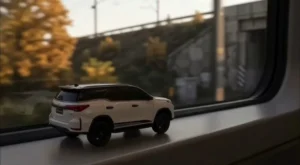
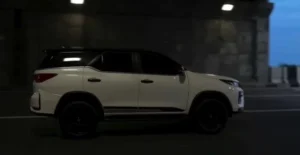
Prompt 2: The Transformation — End Frame to Highway (Part 2)
Upload your car image again, plus the screenshot of Part 1’s final frame, then paste this prompt. The darkness of the tunnel does the transformation; the car then exits onto the highway full-size.
How to Create the Toy Car to Real Car Video (Step by Step)
Step 1: Open Google Flow and start a New Project.
Step 2: Upload your car image, paste Prompt 1, set the ratio to 9:16 and generate. Save the finished Part 1 video.
Step 3: Play Part 1, pause on the final frame inside the dark tunnel and take a screenshot. Crop the screenshot to just the video frame.
Step 4: Back in Flow, upload the car image and the cropped screenshot, paste Prompt 2 and generate Part 2.
Step 5: Put Part 1 and Part 2 back-to-back in CapCut or any video editor — no transition effect between them — and export in 9:16. The tunnel darkness joins them invisibly.
What Is Google Flow AI?
Flow is Google’s AI video tool. It can generate video from text alone, animate a still image, or — as here — build a video around a reference image so a specific real object keeps its identity on screen. That image-anchoring is exactly what this edit depends on: your car has to stay your car through a train ride, a tunnel and a highway. Flow runs in the browser and its free plan includes a limited credit pool, enough to produce both parts of this video a few times over while you get the orientation right.
FAQs
Why does this edit need two prompts instead of one?
The transformation is hidden inside the tunnel’s darkness, and one generation cannot hold the car steady across both scenes. Part 1 ends on the dark tunnel frame; you screenshot it, and Part 2 continues from that exact frame so the switch from miniature to full-size is invisible.
Which car image works best?
A clear side-view photo in good light, with the whole car in frame and the front clearly different from the rear. Blurry, dark or front-only photos make the orientation lock fail and the car flips direction mid-video.
My car changed direction in Part 2. How do I fix it?
Re-upload the same original reference image with Part 2 (never a mirrored or re-saved copy), and regenerate. If it keeps happening, switch to a cleaner side-profile photo where the grille and headlights are unmistakable.
Can I use a car I do not own, like a Defender or a G-Wagon?
Yes — any clear car image works, which is why most viral versions use dream cars. A photo of your own car works just as well and feels more personal to your audience.
Is Google Flow free for this video?
Flow has a free plan with a limited credit pool. This edit needs two generations, so preview Part 1 carefully and only spend the second generation once the miniature and orientation look right.
Conclusion
Two prompts, one screenshot, one join in an editor — that is the entire production behind a video that looks like a car commercial. Get the side-view photo right, respect the orientation lock, and let the tunnel do the magic.
Car lover? The Mercedes car video prompt puts you in the driver’s seat of a luxury car video using the same image-to-video method.
