


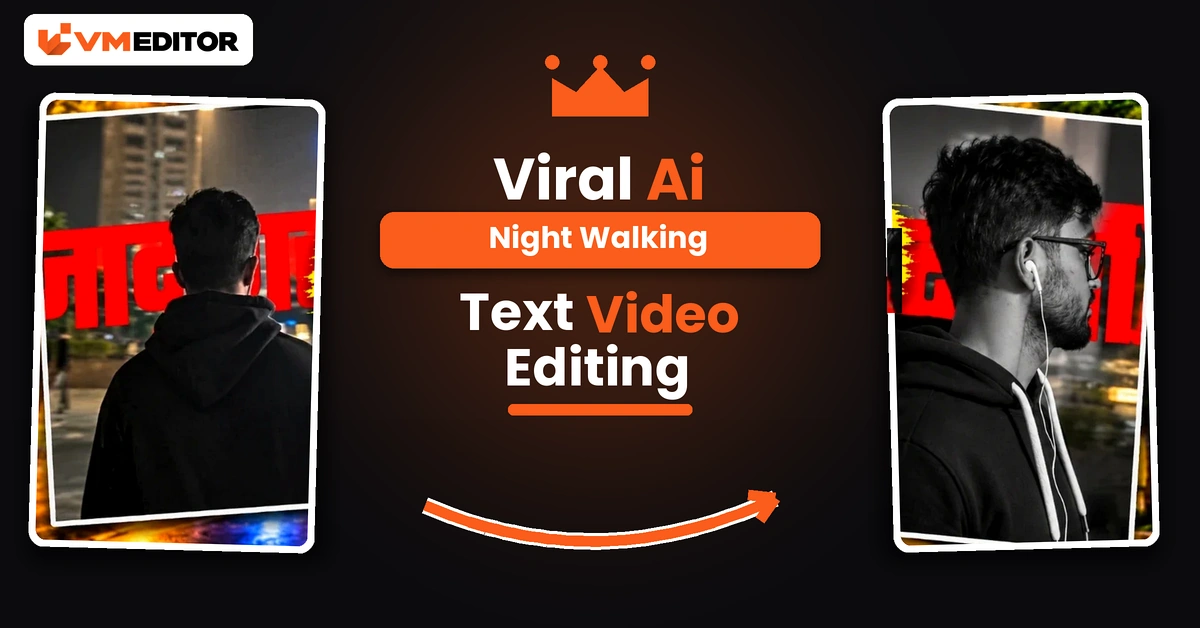
One Photo In, a Cinematic Night Walk Out
A man in a black suit walks a quiet city street at night — past shuttered shops and warm streetlights, down a broad stone staircase, straight towards the camera — while stylish animated text plays over the scene. It looks like a fashion film shot at 2 a.m. It was generated from a single photograph, in two tools: Google Flow AI creates the walking video from your photo and the prompt below, and CapCut adds the animated text overlay that gives the edit its signature finish.
No walking footage of your own, no camera, no editing timeline skills. Your photo supplies the man; the prompt supplies the suit, the street and all six shots, timed to the tenth of a second.
Details of Viral AI Cinematic Walking Video Editing
Most AI video prompts describe a scene and hope for the best. This one behaves like a shot list. It fixes the outfit (premium black suit, white shirt, slim black tie, dark sunglasses), fixes the location (a nighttime commercial street with closed shutters, glowing signs and one grand staircase), and then directs six specific shots — side profile, rear view, staircase descent, frontal approach with a jacket adjustment, low-angle legs, final confident walk — each with an exact duration that adds up to precisely 10 seconds. That director-level detail is why results from this prompt look composed rather than random, and why the format keeps getting reposted.
What You Need to Create This Video
Google Flow AI — to generate the walking video. One clear photo of the man — front or three-quarter face, sharp and well-lit; the prompt locks his identity to it with zero drift. CapCut — for the finishing step. And the animated text video — a separate downloadable overlay (button below the prompt) that CapCut places over your finished walk. Nothing else: the prompt builds the entire scene, so unlike most trends here, no reference video is involved.
How to Create the Video Using Google Flow and CapCut
Part 1 — generate the walk in Flow. Open Google Flow from the Create Your Video button, start a New Project, click the Plus icon and upload your photo (@IMAGE1). Paste the prompt below (fill in the age field only if you want to change the apparent age — blank keeps the photo’s age), set 16:9, and click Send. Preview the result and download it.
Part 2 — add the text in CapCut. Open CapCut, create a new project and add your generated walking video. Choose Overlay and add the downloaded animated text video. Select the overlay and use Remove Background to strip its original background, leaving only the text animation. Adjust the text’s size, position and timing against your walk — most creators park it in the opening or the final approach shot — then preview and export.
Prompt 1: AI Night Walking Video Prompt (Google Flow)
Upload your photo, paste the prompt, and leave BOY_AGE blank unless you specifically want a different age than the photo shows.
What Is Google Flow AI, and How Does It Help Create Cinematic Walking Videos?
Flow is Google’s AI video creation tool: it generates video from images, reference material and text prompts, letting creators experiment with scenes, movements and cinematic styles without filming every frame. For this technique the division of labour is simple — your photograph provides the character, and the written prompt directs everything else: the outfit, the street, the camera positions and the exact timing of six shots. Combine a clear photo with the prompt pasted untouched and Flow produces a personalised walking video that CapCut then finishes.
What Is CapCut, and Why Is It Used for the Text?
CapCut is a video editing app with the overlay and background-removal tools this finish needs. The animated text for this edit is supplied as its own little video; in CapCut you lay it over your walking footage with the Overlay option, strip its background with Remove Background so only the text animation remains, and then position and time it against the walk. It takes two minutes, and it is the step that turns a clean AI video into the recognisable trending edit — the walk gets the attention, the text gets the screenshots.
Why Is AI Cinematic Walking Video Editing Becoming Popular?
Because it gives an ordinary photo a film premiere. A confident walk in a black suit reads as status content everywhere — profile videos, attitude status, birthday edits — and nobody has to actually find a location, a suit that fits like that, or a friend who can track a camera smoothly at night. AI supplies the production value; CapCut supplies the personality in text. That two-tool split is also why beginners manage it: each app does only the part it is good at.
FAQs
Why is the walking video 16:9 when Reels are vertical?
This prompt is composed as a landscape fashion film — the staircase and street shots need the width. For Reels, crop to 9:16 inside CapCut while adding the text overlay, keeping the man centred; or post the landscape version to YouTube and Facebook, where it fits natively.
What is the BOY_AGE field, and should I fill it in?
It is an optional age override inside the prompt. Leave it blank and the video keeps the apparent age of your photo — which is what most people want. Type an age only if you deliberately want the man to look that age instead.
Where does the animated text in these videos come from?
From a separate text video, not from Flow. Download it from the button above, then in CapCut add it as an Overlay on your walking video and use Remove Background so only the text animation sits over your footage.
Can I change the outfit or remove the sunglasses?
Those lines are inside the prompt, so you can edit them — but be aware the black-suit-and-sunglasses look is the entire identity of this trend. Change the outfit and you have a fine walking video, just not this viral one.
Conclusion
One photo, one director-grade prompt, one text overlay. Generate the walk in Flow exactly as timed, finish it in CapCut with the animated text, and an ordinary portrait becomes a night scene people assume you filmed.
For another cinematic arrival-style video from a single photo, try the helicopter entry video prompt — same one-photo method, considerably louder entrance.
