


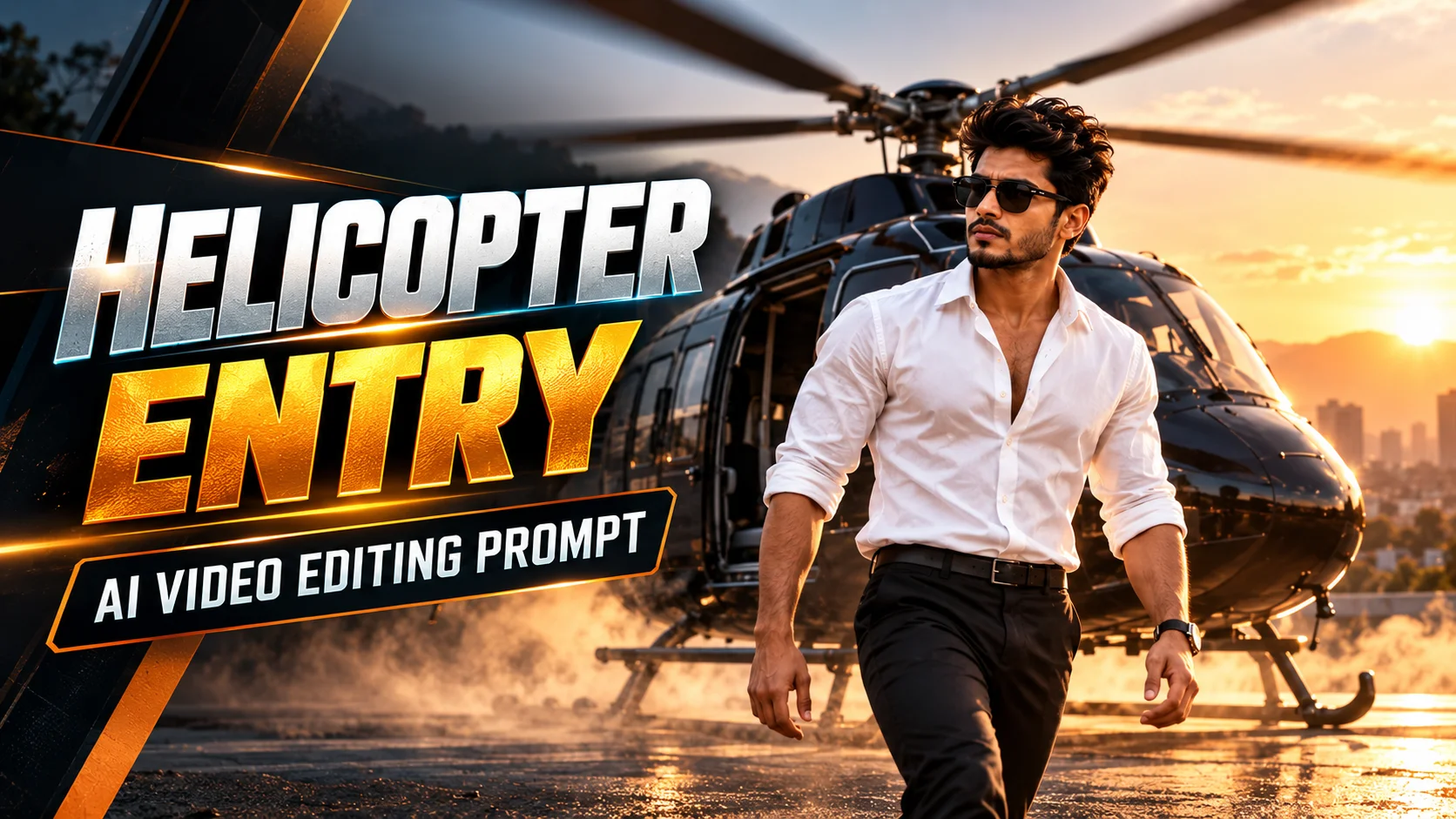
A helicopter landing scene can create a strong movie-style entrance when the character, camera angles, walking motion, and environment remain consistent from shot to shot.
This edit uses a young man in a teal shirt and black trousers, a white helicopter, and a large reddish-brown quarry environment. The sequence begins with a close shot of the character stepping out of the helicopter, moves through several cinematic angles, and ends with him walking toward the camera while starting to raise both hands toward his shirt collar.
The workflow uses two separate prompts. The first helps establish the character and storyboard reference. The second controls the actual 10-second video sequence.
If you also want to create another realistic vehicle-based AI reel, the Mercedes car AI video editing prompt follows a related identity-reference and motion-control workflow.
What This Helicopter Entry Edit Looks Like
The scene takes place in a wide-open quarry with layered reddish-brown terrain and a pale, cloudy sky. A white helicopter is positioned inside the quarry while the main character makes a controlled hero-style exit.
The sequence changes between extreme close-ups, medium shots, and wide establishing angles. This is important because the effect depends on more than simply showing someone beside a helicopter.
The key visual elements are:
- Same male identity across every shot
- Teal shirt and black trousers
- Wristwatch and bracelet retained
- White helicopter
- Reddish-brown quarry
- Serious facial expression
- Low-angle helicopter exit
- Close-up face reveal
- Full-body walk toward the camera
- Final collar-gesture setup
- Vertical 9:16 composition
Prompt 1 — Character and Storyboard Reference
Use this first prompt to prepare the visual reference for the sequence. It is designed around two inputs: the first image controls the character identity, while the second image controls the scene, composition,n and storyboard.
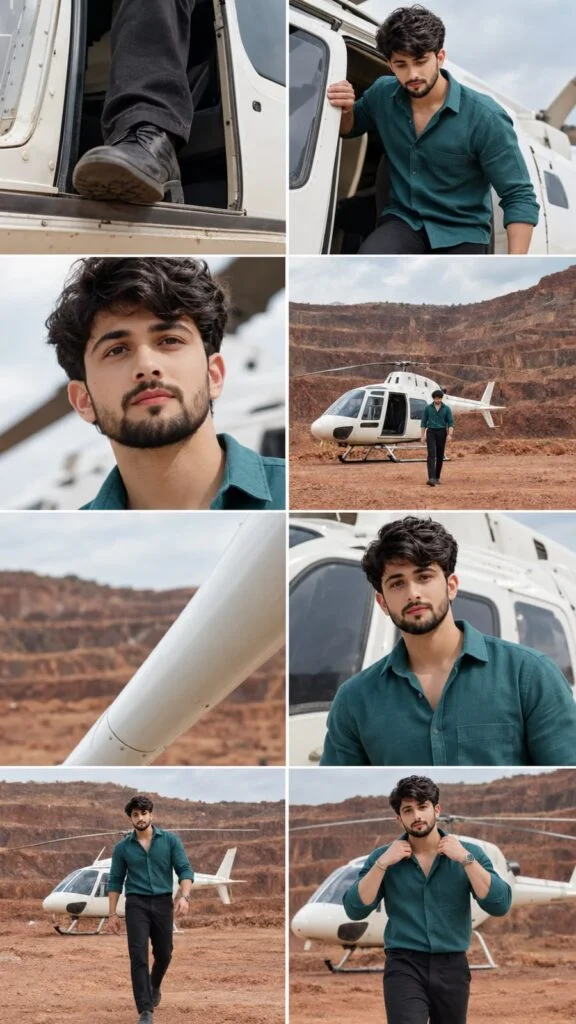
Use Reference Image 1 as the absolute identity reference for the main character. Use Reference Image 2 as the master reference for the quarry, white helicopter, framing, poses, camera angles and overall storyboard.
Build the sequence inside a large reddish-brown open quarry with layered and terraced rocky formations under a pale cloudy sky.
Place a realistic white helicopter in the quarry with its side doorway open. Keep the helicopter design and surrounding landscape consistent across all storyboard views.
Begin with an extreme tight low-angle close-up showing only the character’s lower leg and dark shoe stepping outward through the open side doorway of the white helicopter.
Keep the composition vertical and very close to the doorway. Show realistic trouser fabric, shoe detail and helicopter doorway materials.
Show the same character emerging through the helicopter doorway from a close side angle.
One hand grips the doorway or frame while the upper body leans outward. Keep the head slightly lowered and let the white helicopter dominate the frame.
Create an extreme close-up portrait of the exact person from Reference Image 1.
Use a calm, serious and composed expression with no smile. Raise the chin slightly and direct the eyes gently upward and forward.
Keep the pale sky and a softly blurred section of the helicopter behind him with shallow depth of field.
Reveal the full white helicopter parked in the large quarry. Position the character beside it as he begins moving away from the aircraft.
Show the terraced reddish terrain, pale cloudy sky and warm earthy atmosphere while keeping the character clearly recognizable.
Create an extreme close view of a pale helicopter structural element crossing diagonally through the frame.
Keep the quarry softly blurred behind it and avoid adding unnecessary mechanical parts.
Show the character in a medium close-up beside the helicopter, facing toward the camera with the same serious and controlled expression.
Keep the helicopter visible behind him and use a chest-to-eye-level cinematic camera position with natural outdoor light.
Create a wider full-body view of the character walking directly toward the camera across the reddish quarry ground.
Use an upright confident posture, natural arm movement and believable foot placement while keeping the helicopter visible in the background.
Continue the same forward movement. Show the character beginning to raise both hands toward his shirt collar.
The hands should only be starting to reach the collar. Do not reset the pose or change the walking direction.
Use photorealistic action-film photography, realistic human anatomy, natural skin texture, detailed teal fabric, realistic black trousers and physically believable white helicopter materials.
Use natural outdoor light, subtle atmospheric dust, realistic perspective, cinematic depth of field and a vertical 9:16 composition.
Reference Image 1 controls the person’s identity and appearance. Reference Image 2 controls the scene, composition, pose, camera and visual direction.
Preserve the visual sequence exactly and finish with the character moving forward while both hands are beginning to rise toward his collar.
Prompt 2 — 10-Second Helicopter Entry Video
The second prompt uses the character reference together with the original movement/reference video to generate the actual entry sequence.
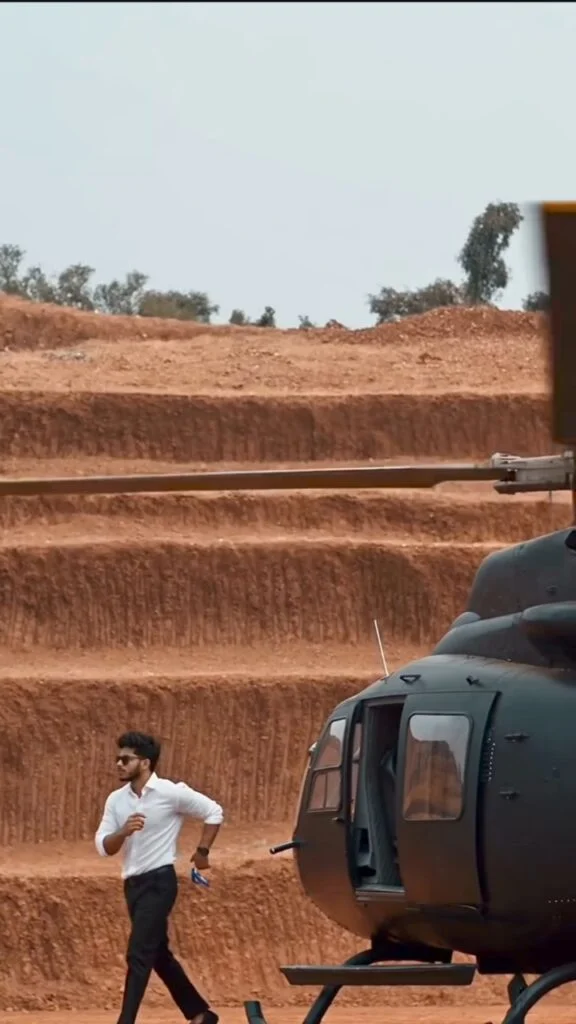
Recreate the first 10 seconds of the supplied helicopter entry reference as closely as possible while replacing the original character with the person from the uploaded identity image.
Start with an extremely tight low-angle shot of the helicopter doorway. Show the character’s lower leg and dark shoe moving outward through the open side doorway of the white helicopter.
Keep the camera very close and preserve the vertical composition with slow, controlled movement.
Hard cut to a close side view of the white helicopter as the same character emerges through the doorway.
One hand grips the doorway while the upper body leans outward and the head initially remains slightly lowered.
Hard cut to an extreme close-up of the character’s exact face.
Keep a serious and composed expression with no smile. Direct the gaze slightly upward and forward while the pale sky and helicopter remain softly blurred behind.
Cut to a wide establishing shot revealing the complete white helicopter in the reddish-brown quarry.
The character stands beside the helicopter and begins moving away from it. Preserve the layered quarry terrain and pale cloudy sky.
Hard cut to a close helicopter detail. Let a pale structural element pass diagonally across the frame while the quarry stays softly blurred in the distance.
Return to a medium close-up of the character beside the helicopter.
He faces the camera with a controlled serious expression while the helicopter remains clearly visible behind him.
Cut to a wider full-body shot. The character walks directly toward the camera across the quarry with natural arm movement, realistic foot placement and a steady forward pace.
Continue the same forward motion and begin raising both hands toward the shirt collar.
End while the hands are just beginning to reach the collar so another clip can continue from the same body position and movement.
Use photorealistic cinematic action-film footage, realistic skin, believable fabric, natural human anatomy, outdoor lighting, subtle motion blur and realistic depth of field.
Keep the video vertical at 9:16 and maintain smooth, physically believable motion.
Avoid face morphing, different people, clothing changes, missing accessories, malformed hands or feet, sliding movement, floating bodies, extra characters, changing helicopters, background flicker, random camera motion, wrong shot order and CGI-looking surfaces.
Finish with the character still walking toward the camera while both hands have started moving upward toward the collar.
Do not reset the character before the final frame.
How to Create the Helicopter Entry AI Video
Start with a clear photo of the person who will appear in the video. The face, hairstyle, and clothing should be easy to see because that image becomes the identity reference.
Next, create the character/storyboard reference using Prompt 1. Upload the main character image as Reference Image 1 and the scene or storyboard reference as Reference Image 2. Keep the teal shirt, black trousers, watch,h and other important identity details consistent.
After you have the reference image, open your AI video generator and provide the character reference together with the helicopter-entry reference clip where supported.
Copy Prompt 2 and paste it into the video-generation prompt field. Select a vertical 9:16 format if that option is available.
Generate the sequence and watch the entire video rather than checking only a single frame. Pay particular attention to the face during close-ups, the helicopter doorway exit, hands, walking motion, and the final collar gesture.
Editing the Generated Helicopter Video
The generated clip may not naturally match the exact pacing of the audio you want to use. You can adjust this afterward in CapCut or another video editor.
Import the generated video and your selected audio into the timeline. Identify the moments where the entry, face reveal,l or walk should land on the music.
If one section feels too fast, reduce the speed slightly. Values such as 0.8x, 0.9x or another nearby speed can be useful, but the correct value depends on the generated footage and audio timing.
Avoid slowing every part of the clip. The entry works better when speed changes support specific beats rather than making the entire sequence unnaturally slow.
Tips for Better Results
Keep Both References Clear
The identity image and scene reference have different jobs. The identity image controls the person, while the scene or video reference controls composition and movement.
Do not use a blurry face image and expect the model to reconstruct exact facial details reliably.
Preserve the Teal Outfit
The teal shirt is an important visual continuity element in this particular edit. If its color changes between shots, the final video will feel less consistent.
Check the Helicopter Between Cuts
AI video generation can subtly alter doors, windows, rotor placement,nt or body proportions between shots. Watch the helicopter as carefully as the character.
Do Not Overcomplicate the Walking Shot
The walk toward camera should remain physically simple. Complex arm gestures, fast turns, runs, or sudden camera movement increase the chance of distorted limbs or sliding feet.
Protect the Final Frame
The final pose matters because it sets up a possible continuation. Both hands should only begin moving toward the collar rather than completing a completely different gesture.
Common Problems and Fixes
The Face Changes in the Close-Up
Use a clearer identity image and strengthen the identity-consistency instructions. Avoid adding unnecessary facial styling or dramatic expressions.
The Helicopter Changes Shape
Keep the reference helicopter visible and emphasize structural consistency. Avoid asking the model to redesign or stylize the aircraft.
The Character Slides Instead of Walking
Use simple forward movement, realistic foot placement,ment and natural weight transfer. Avoid overly fast motion.
The Quarry Changes Between Shots
Keep the same reddish-brown terraced quarry description throughout the prompt and avoid requesting new backgrounds in individual shots.
The Hands Become Distorted
The final collar movement should remain small. Large or complicated gestures increase the chance of malformed fingers.
FAQs
Why are there two prompts in this tutorial?
The first prompt prepares the character and visual storyboard reference. The second prompt uses the character identity and motion reference to generate the 10-second helicopter-entry sequence.
Can I change the teal shirt?
You can customize the clothing, but the same outfit should remain consistent across every shot. If you change the shirt, update both prompts so the image and video references agree.
Can I use a different helicopter?
Yes, but this specific visual concept is designed around a realistic white helicopter. Changing the aircraft will create a different result from the reference style.
Why does the prompt end with the hands moving toward the collar?
That position creates continuity for the next possible video segment. Ending on a controlled unfinished motion makes it easier to continue from the same pose.
Should I generate the video directly from one photo?
A single portrait can provide identity information, but this workflow also relies on a storyboard or movement reference to control the scene, camera angles, and shot sequence.
Can the generated clip still need manual editing?
Yes. AI can create the main sequence, but speed adjustments, music synchronization, trimming, and final pacing may still be better handled in a video editor.
Final Thoughts
The helicopter entry effect depends on continuity more than flashy effects. The face, teal outfit, helicopter, quarry environment, and shot order all need to remain stable while the camera changes perspective.
Create the character reference first, then generate the 10-second sequence, inspect every transition,n and finally adjust the pacing around your chosen audio.
