
Close Menu
Vm Editor

    Subscribe to Updates

    Get the latest creative news from FooBar about art, design and business.

    What's Hot

    ChatGPT All Viral Photo Editing Prompts 2026 – Trending AI Photo Editing Prompts

    November 6, 2026

    Viral AI Girl Diwali Video Editing – Stunning Fireworks Video with Google Flow (2026)

    November 6, 2026

    Viral AI Night Walking Text Video Edit Prompt – Google Flow & CapCut (2026)

    November 6, 2026
    Facebook X (Twitter) Instagram
    Vm EditorVm Editor
    • Home
    • AI Video Editing
    • AI Photo Editing
    • About Us
    • Contact Us
    Vm Editor
    Home»AI Video Editing»Viral AI Girl Transformation Diwali Video Editing Prompt – Gemini Tutorial (2026)
    AI Video Editing

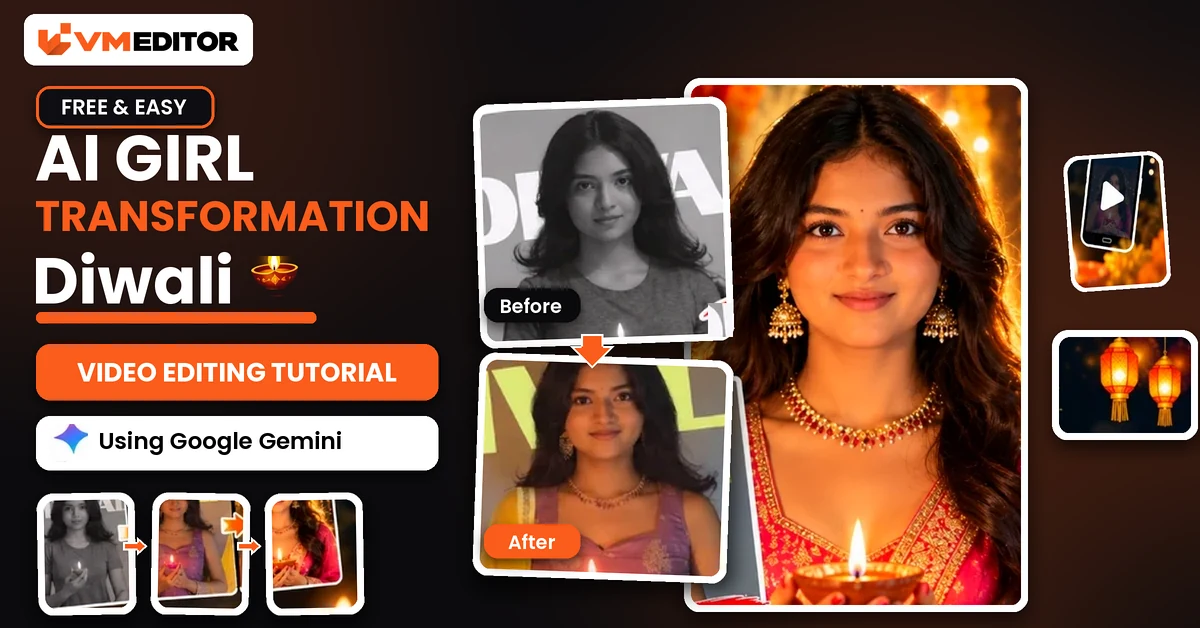
    Viral AI Girl Transformation Diwali Video Editing Prompt – Gemini Tutorial (2026)

    Arjun MehtaBy Arjun MehtaNovember 4, 20261 Comment7 Mins Read
    Facebook Twitter Pinterest LinkedIn Tumblr Email
    Share
    Facebook Twitter LinkedIn Pinterest Email

    The Diwali Transformation Video Everyone Is Making From One Photo

    It is one of the prettiest trends of the festive season: a girl in a simple everyday look transforms into a full traditional Diwali look — elegant ethnic outfit, jewellery, festive glow all around — in one smooth, cinematic video. The versions flooding Instagram Reels were not shot in a studio. They were generated: a reference video supplies the performance, your photo supplies the person, and Google Gemini rebuilds the video around you.

    You need exactly three things: the reference video (download button below the prompt), one clear photo of yourself, and the prompt in this article. No editing skills, no timeline, no apps beyond Gemini.

    How the Trick Works

    The prompt splits the job in two. The reference video is used only for movement, camera work, timing and performance — how the girl in it walks, turns, smiles and how the camera follows her. Your photo is the absolute identity reference: your face, hair, proportions and look stay exactly yours while you perform those same movements. That separation is why the result looks like you actually filmed the transformation instead of a stranger wearing your face.

    Picking the photo: use a clear, front-facing photo in good light, with your face and hairstyle fully visible and no heavy beauty filter. The AI preserves what it can see — a sharp photo means your identity survives every frame, including the close-ups. Avoid group photos and anything where your face is partly covered.
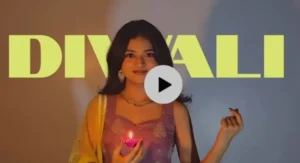
    Prompt 1: AI Girl Transformation Diwali Video Prompt (Gemini / Flow)

    Upload the reference video first, then your photo, then paste this prompt exactly as it is.

    Use the provided reference video ONLY as the reference for motion, camera behaviour, timing and performance, and use the provided target image as the absolute reference for visual identity. Recreate the video with the person from the target image, transferring the movement and camera behaviour of the reference video onto her as accurately as possible. The target image is the source of truth for the character’s appearance. Keep the character exactly consistent for the entire video: the same face, facial structure, eyes, eyebrows, nose, lips, jawline, skin tone, realistic skin texture, hairstyle, hair length, hair shape and texture, hairline, body shape and proportions, clothing, clothing colours, fabric, design and details, accessories and overall identity. Do NOT redesign, beautify, replace, modify, age or de-age the person, and do not change the outfit or hairstyle as the body moves. Study the reference video frame by frame and reproduce its movements as faithfully as you can — head movement, facial expressions, eye direction and gaze, eyebrow movement, mouth movement, blinking, neck movement, shoulders, arms, hands, upper-body movement, walking, posture, natural weight shifting, timing, rhythm, and the exact start and end positions of every movement. The character from the target image must perform the same actions as the person in the reference video while remaining visually identical to the target image. Copy the reference video’s camera completely: position, angle, distance, height, movement, handheld motion, camera shake, push-in, pull-out, pan, tilt, tracking, framing, subject positioning, perspective changes and movement speed. Do not introduce any camera movement that is not in the reference video. Transfer the facial performance naturally and accurately — matching the original expression intensity, smile or neutral expression, eye movement, eyebrow movement, head tilt, lip movement and emotional timing — without altering the target person’s identity. The face must stay recognisable as the exact same person from the target image in every single frame. Create highly realistic motion with natural human biomechanics. Avoid face morphing, identity drift, facial distortion, melting features, unnatural eye movement, extra or missing fingers, deformed hands, body warping, clothing changes, hair changes, artificial expressions, rubber-like movement, flickering and frame-to-frame inconsistencies. Hands, arms, face, hair and clothing must remain anatomically and visually consistent throughout, with strong temporal consistency — no random changes between frames. Keep the same composition and subject framing as the reference video wherever possible, adapted to a full-frame 16:9 horizontal landscape output; if the person moves closer to or further from the camera, reproduce the same relative movement with the target character. Keep the video full-frame with no black bars, letterboxing, pillarboxing or artificial borders, and add no unnecessary background elements. OUTPUT: 16:9 horizontal landscape, 1920×1080 Full HD, 30 FPS, normal real-time speed (1×) — a cinematic but natural-looking video of the exact person from the target image naturally performing the exact movements and camera performance of the reference video. PRIORITY ORDER: (1) target image identity and appearance, (2) reference video motion and performance, (3) reference video camera movement, (4) natural physics and realism, (5) visual style.

    Best For: Diwali and festive transformation videos made from your own photo

    Recommended Aspect Ratio: 16:9 (Horizontal, 1920×1080)

    Customizable Elements: Your photo (the identity) — the performance, camera and festive look come from the reference video

    ⬇ Download Reference Video

    How to Create the Diwali Transformation Video in Google Gemini

    Step 1: Open the Google Gemini app or website (button below) and sign in.

    Step 2: Upload the reference video first, then your photo. Order matters — Gemini reads the first file as the motion reference and the image as the identity.

    Step 3: Paste the copied prompt into the prompt box, exactly as given.

    Step 4: Tap Send and wait while Gemini processes the video, photo and prompt together. Generation can take a few minutes.

    Step 5: Preview the result. Check the face in the close-ups — if the identity drifts, a clearer photo fixes it more reliably than regenerating with the same one. Then save the video to your device and post it.

    One honest note: video generation in Gemini depends on your account and region, and it may not be switched on for every account. If the option does not appear in Gemini, run the identical process in Google Flow (second button below) — the uploads and the prompt work exactly the same way there.

    ▶ Create Your Video
    ▶ Create Your Video With Flow

    What Is Google Gemini, and How Does It Make Videos Like This?

    Gemini is Google’s AI assistant. Beyond chat and images, it can generate video on supported accounts: you give it inputs — here, a reference video plus a photo — and a prompt describing what to do with them, and it renders a new video from the combination. For transformation trends this is ideal, because the creative work (the performance, the festive look, the camera moves) already exists inside the reference video; Gemini’s job is to re-perform it with your identity, which the prompt above instructs in strict priority order. Availability and generation limits vary by account, plan and region, which is why the same process in Google Flow is worth knowing as a backup.

    FAQs

    Is video generation available on a free Gemini account?

    It depends on the account and region — Gemini’s video features are not switched on for everyone, and free accounts face stricter limits. If the option does not appear, use Google Flow with the same reference video, photo and prompt; the process is identical.

    The prompt outputs 16:9, but Reels are vertical. What should I do?

    This reference video is framed in landscape, so the generated video is 16:9. For Reels, crop or reframe it to 9:16 in CapCut after downloading, keeping the subject centred — or post it as-is to YouTube and Facebook, where landscape works natively.

    Why does my face change during the transformation?

    The photo is nearly always the cause: small, filtered, side-facing or low-light photos give Gemini too little identity detail to hold across movement. Use a clear, front-facing photo in good light and regenerate.

    Can I use a different festival or outfit video as the reference?

    Yes. The prompt is a general motion-transfer instruction — any reference performance video works the same way. The look your photo performs will always be the one inside the reference video you upload.

    Conclusion

    Reference video, one clear photo, one prompt — that is the whole Diwali transformation. Upload in the right order, paste the prompt untouched, and Gemini does the performance for you.

    Staying with festive traditional looks, the cinematic saree video prompt turns a single photo into a full saree look video — no reference video needed for that one.

    Share. Facebook Twitter Pinterest LinkedIn Tumblr Email
    Arjun Mehta
    • Website

    Arjun Mehta is a contributing writer at VM Editor, covering AI video prompts, generative media workflows, and practical creator tools.

    Related Posts

    Viral AI Girl Diwali Video Editing – Stunning Fireworks Video with Google Flow (2026)

    November 6, 2026

    Viral AI Night Walking Text Video Edit Prompt – Google Flow & CapCut (2026)

    November 6, 2026

    Viral Bahubali Funny Comedy AI Reels Edit Prompt – 3 Character Replacement (2026)

    November 6, 2026
    View 1 Comment

    1 Comment

    1. Pingback: Viral AI Girl Diwali Video Editing (Fireworks Video Prompt)

    Leave A Reply Cancel Reply

    Editors Picks

    Viral AI Girl Diwali Video Editing – Stunning Fireworks Video with Google Flow (2026)

    November 6, 2026

    Viral AI Night Walking Text Video Edit Prompt – Google Flow & CapCut (2026)

    November 6, 2026

    Viral Bahubali Funny Comedy AI Reels Edit Prompt – 3 Character Replacement (2026)

    November 6, 2026

    AI Character Replacement in Any Video Editing Prompt Using Google Flow AI (2026)

    November 6, 2026
    Vm Editor
    Facebook X (Twitter) Instagram YouTube
    • Home
    • About Us
    • Privacy Policy
    • Contact Us
    • Disclaimer
    • Terms and Conditions
    • Sitemap
    • APK Hijau
    © 2026 VM Editor. All Rights Reserved

    Type above and press Enter to search. Press Esc to cancel.