


Every Viral Photo Edit You Keep Seeing — In One Place
A new AI photo trend lands on social media every single day: aesthetic portraits today, a couple edit tomorrow, a background swap the day after. Chasing each one across ten websites is a waste of an evening, so this page collects the trending ChatGPT photo editing prompts in one place. Every prompt below turns an ordinary photo into the professional, social-media-ready version of itself — no editing software, no manual retouching, just your photo and a copied prompt.
This collection is updated as new edits go viral, so bookmark it and check back — the newest prompts sit at the top.
Details of Viral Social Media Photo Editing
What changed with AI photo editing is not just speed — it is the finish. Lighting, colour grading, skin smoothness and background work that used to take a skilled editor hours inside expensive software now happens from one written instruction, and the results are realistic enough that most viewers cannot tell the photo was generated. ChatGPT and Gemini handle the whole pipeline from a single prompt: describe the change (or copy a proven prompt), upload your photo, and the edited image comes back in seconds, graded and polished like a manual edit.
What Is AI Photo Editing?
Before AI, editing your own photo meant learning the tools yourself — lighting, colour tone, grading, smoothing, background replacement — or paying someone who had. AI photo editing collapses all of that into a sentence. Want a new background, a fairer and smoother face, a different outfit, four or five photos merged into one professional portrait? You write it, or paste a prompt that already says it well, and the AI generates the photo in roughly five to ten seconds. Cinematic looks, aesthetic portraits, couple edits, 3D styles, festival looks — every category on this site starts from that same simple mechanic, and the free tiers of these apps are generous enough (a handful of photos a day per account) for anyone to keep a profile looking professionally edited without spending anything.
Prompt 1: Place Yourself Into Any Photo (Background Prompt)
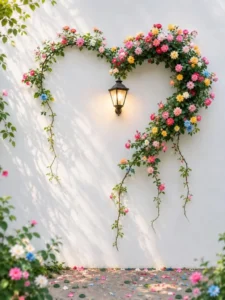
Upload two photos: your portrait first, then the photo whose scene you want to stand in. This prompt moves you into the second photo realistically — and protects that background pixel-for-pixel.
Prompt 2: Cyan-Blue Mirror Selfie Prompt
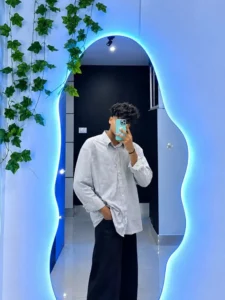
Upload one clear photo of yourself. This prompt rebuilds it as a full-body mirror selfie in a blue LED-lit aesthetic room — your identity, outfit and style untouched.
How to Create a Viral Photo (Step by Step)
Step 1: Open ChatGPT from the Create Your Image button below and log in with your Google account.
Step 2: Click the Plus icon and upload your photo — for Prompt 1, upload your portrait first and the background photo second; for Prompt 2, just your own photo.
Step 3: Copy the prompt for the edit you want and paste it into the message box.
Step 4: Press Send and wait a few seconds while your image generates.
Step 5: Tap the finished image and Download it — ready to post.
What Is the ChatGPT App?
ChatGPT is OpenAI’s AI assistant — most people know it for answering questions in plain, human-like language, but it is also a genuinely capable photo editor. Add any photo and describe the change: a new background, a whitened and smoothed face, an object removed or added, four or five photos merged into one professional portrait. Different prompts produce different photo styles, which is exactly why collections like this page exist. The interface is simple enough for a complete beginner, and the free tier generates several photos a day per account — plenty for keeping up with daily trends.
FAQs
Do these prompts work only in ChatGPT?
They are written for ChatGPT, but the same prompts also work in Gemini’s image editing — the upload-and-paste process is identical. Use whichever app you already have; the prompt does the creative work either way.
For Prompt 1, which photo do I upload first?
Your own portrait first, the scene/background photo second. The prompt takes the person from the first photo and places them into the second — swapping the order puts the wrong person into your photo instead.
How many photos can I create for free?
Free accounts on these apps typically allow a few image generations per day, and the exact limit varies by app and account. Spread your edits across the day, or prioritise the prompt you most want while a trend is peaking.
My face changed slightly in the mirror selfie. How do I fix it?
Start from a sharper, front-facing photo in good light. The identity lock in Prompt 2 is strict, but it can only preserve detail the photo actually contains — blurry or heavily filtered selfies are where small face changes creep in.
Conclusion
Two prompts today, more as they trend — that is the deal with this page. Copy the prompt behind the edit you like, run the same five steps, and post the result while it is still climbing.
Digging deeper into either style: the viral beautiful background AI photo prompts expand the background-swap idea into a full set, and the yellow lighten mirror photo prompt is the warm-lit cousin of Prompt 2’s blue mirror selfie.
